Click on the blue “Add to Firefox” button to install the extension.
Pin the extension to the toolbar: Click on the puzzle piece icon on the top right and then click on "add to toolbar"
How to Perform Sovendus Integration Tests
Install the Sovendus Self-Test Extension by following the provided instructions.
Perform two tests: one on Desktop Chrome (with rejected cookies) and one on Mobile Chrome, following the instructions below.
How to Perform a Test on Desktop Chrome
Place an order on your store using the Chrome browser (on Linux, Mac, or Windows) with cookies rejected. Also make sure to use any voucher code for the order, as we need to check if it gets passed on properly.
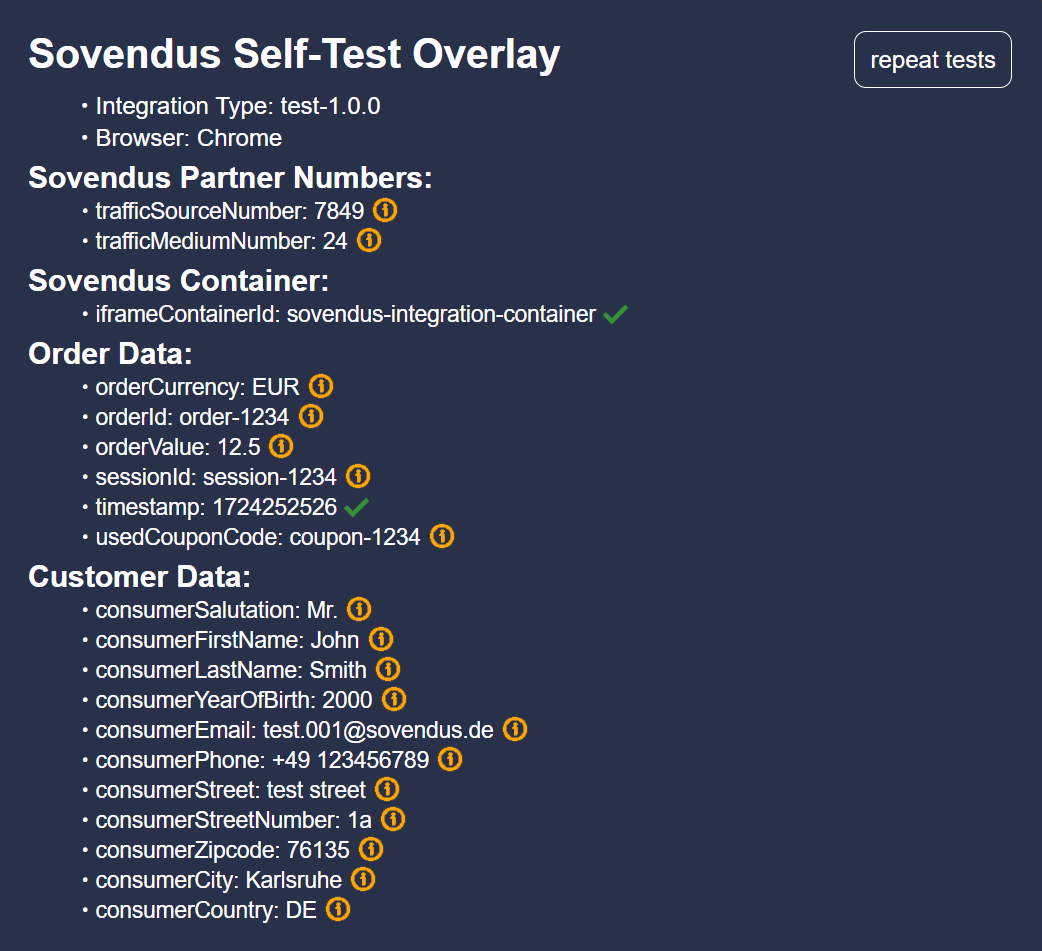
If there is a trace of our integration, the self-test overlay will open automatically on the page, displaying all order, consumer, and integration information.
Make sure the Sovendus Checkout Benefits offer list and Voucher Network are visible on the page where they should be.
Now check all values and potential error messages in the self-test overlay. Make sure to follow the steps you'll see when you hover over the info icons next to the values to verify them. In case there are any red error messages, follow the steps to fix them.
Repeat the steps above until all errors are resolved, and then send the test result to your account manager as described below.
To copy the test result to your clipboard, click on the Sovendus icon in the top right corner (if you can't see the Sovendus icon, click on the puzzle icon), and then click on "Copy Test Result." Wait and don't click out of the browser until the button changes color to green. This will create a screenshot of the page, including all information about the integration for your account manager. You can then navigate to your email program and paste the screenshot into the email using "Ctrl + V" on your keyboard (or right-click and then paste). When sending the test results, please specify whether cookies were rejected or accepted.
How to Perform a Test on Mobile Chrome
Right-click on a random spot on the website and select "Inspect."
A pop-up should appear. In the top left corner of this pop-up, there should be an icon that looks like a notebook with a phone in front of it. Click on this icon.
The size of your page should now change. After that, click on "Dimensions: ..." at the top of your page and choose "iPhone 14 Pro Max."
After setting up the mobile mode, place another order on your store using the mobile platform, with cookies accepted. Also make sure to use any voucher code for the order, as we need to check if it gets passed on properly.
If there is a trace of our integration, the self-test overlay will open automatically on the page, displaying all order, consumer, and integration information.
Make sure the Sovendus Checkout Benefits offer list and Voucher Network are visible on the page where they should be.
Now check all values and potential error messages in the self-test overlay. Make sure to follow the steps you'll see when you hover over the info icons next to the values to verify them. In case there are any red error messages, follow the steps to fix them.
Repeat the steps above until all errors are resolved, and then send the test result to your account manager as described below.
To copy the test result to your clipboard, click on the Sovendus icon in the top right corner (if you can't see the Sovendus icon, click on the puzzle icon), and then click on "Copy Test Result." Wait and don't click out of the browser until the button changes color to green. This will create a screenshot of the page, including all information about the integration for your account manager. You can then navigate to your email program and paste the screenshot into the email using "Ctrl + V" on your keyboard (or right-click and then paste).
The optimal result for your integration looks like this